
Your Gravity Forms Entries Are Piling Up. Now What?
Learn to automate Gravity Forms entry exports, retention policies, and cleanup workflows. Complete guide with task chaining, GDPR compliance, and WP-Cron setup.
Gravity Forms Entry Automation: Scheduled Exports, Cleanup, and Data Lifecycle Management
Form submissions accumulate quickly. A lead generation form collecting 50 entries daily creates 18,250 records annually, increasing database size and query times. Without a management strategy, WordPress sites experience performance degradation and GDPR compliance risks from indefinite data retention.
This guide covers how to build a data lifecycle management framework for Gravity Forms entries using scheduled exports, retention policies, and automated cleanup — combining native features with the Entry Automation add-on.
Why Data Lifecycle Management Matters
Unmanaged form data creates three primary risks:
Performance impact: Sites with 50,000+ entries experience slower admin loads as MySQL queries process larger datasets in the wp_gf_entry table.
GDPR compliance: European regulations require documented retention periods and automated deletion for personal data. Indefinite storage creates legal liability.
Storage costs: 100,000 entries consume 500MB-1GB of database space, compounding when entries include file uploads.
A lifecycle framework addresses these issues through structured stages: collection, export, retention, cleanup, and archival.
Setting Up Scheduled Exports with Entry Automation
Entry Automation is a third-party add-on from CosmicGiant that adds scheduled export capabilities to Gravity Forms. Pricing starts at $180/year (Personal, 3 sites) with Professional and Agency tiers for additional sites and cloud integrations. Native Gravity Forms supports only manual exports.
Configuration steps:
- Install Entry Automation from the Gravity Forms add-ons directory
- Navigate to Forms, then Entry Automation
- Click “Add New Task” and select your target form
- Choose “Export Entries” as the task type
Export formats and scheduling:
Choose from CSV, XLSX, JSON, or PDF formats. Schedule exports hourly, daily, weekly, or monthly based on volume and urgency.
Delivery options include email attachments, FTP/SFTP, Amazon S3, Dropbox, and Google Drive. Cloud storage provides long-term archival while keeping WordPress databases lean.
Example configuration:
Task: Daily Lead Export
Form: Contact Form
Schedule: Daily at 2:00 AM
Format: CSV
Delivery: Amazon S3 bucket (s3://company-leads/gravity-forms/)
Filters: Entries from previous 24 hours only
Always test export tasks manually before scheduling to verify field mapping and delivery credentials.
Configuring Native Retention Policies
Gravity Forms 2.4+ includes built-in retention management through Personal Data Settings — no additional plugins required for basic cleanup automation.
Access retention settings:
- Edit your form in the WordPress admin
- Navigate to Settings, then Personal Data
- Choose a retention policy from three options:
- Retain Indefinitely: Default behavior with no automatic deletion
- Trash Automatically: Moves entries to trash after specified days (recoverable until manually emptied)
- Delete Permanently: Immediate permanent deletion after retention period expires
Choosing retention periods:
Match retention to business needs: 30-60 days for quick-response contact forms, 90-180 days for lead qualification, or 365+ days for compliance records. GDPR Article 5(1)(e) requires limiting storage to “no longer than necessary” — document your rationale for each form.
Field-level control:
Some forms collect mixed sensitivity data. Gravity Forms allows conditional deletion through the gform_entry_ids_automatic_deletion filter:
add_filter( 'gform_entry_ids_automatic_deletion', function( $entry_ids ) {
    // Exclude entries with a "VIP" field value from automatic deletion
    foreach ( $entry_ids as $key => $entry_id ) {
        $entry = GFAPI::get_entry( $entry_id );
        if ( rgar( $entry, '5' ) === 'VIP' ) {
            unset( $entry_ids[ $key ] );
        }
    }
    return $entry_ids;
} );
This enables nuanced retention strategies beyond simple time-based rules.
Building Complete Lifecycle Workflows with Task Chaining
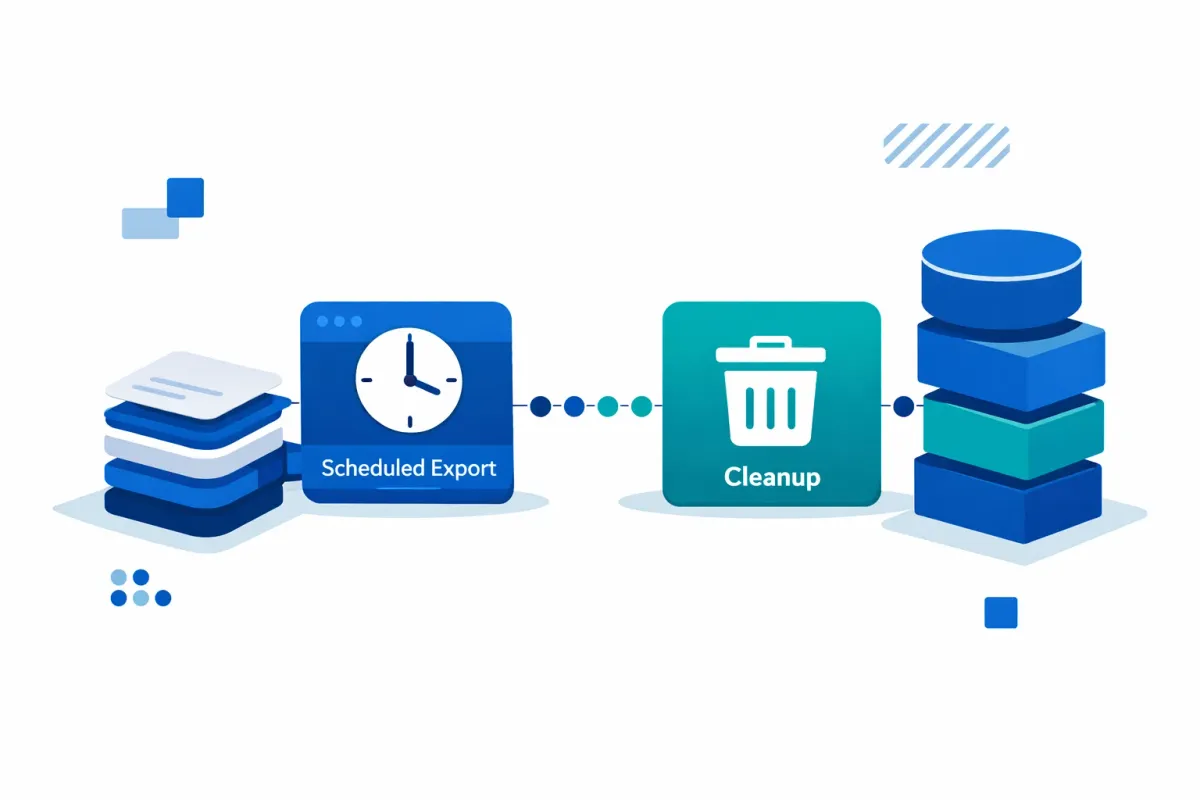
Entry Automation’s task chaining feature sequences multiple operations, ensuring safe deletion by exporting data before removal.
Creating an export-then-delete workflow:
- Create an export task configured for your archive destination (S3, Dropbox, etc.)
- Create a delete task for the same form
- In the delete task settings, set “Run after task” to reference your export task
- Configure the delete task to only run if the export completes successfully
If the cloud storage connection fails or the export encounters errors, the delete task does not run — preventing data loss.
Use case: Lead management with 90-day retention:
Task Chain:
1. Export Task: Daily CSV export to S3 at 2:00 AM
   - Exports all entries older than 89 days
   - Delivers to s3://archive/leads/

2. Delete Task: Runs after successful export
   - Deletes entries older than 90 days
   - Only executes if Task 1 succeeds
   - Logs deletion count for audit trail
This pattern archives data externally before WordPress cleanup, maintaining historical records while reducing database size.
Always back up your WordPress database before implementing automated deletion workflows.
GDPR Compliance and Performance Optimization
Meeting GDPR requirements:
Lifecycle workflows support data minimization (automated deletion), storage limitation (retention policies), and integrity (cloud archival with access controls). However, plugin configuration alone does not ensure compliance. Document lawful processing basis, retention justifications, and data processor agreements for cloud providers. Consult legal counsel for jurisdiction-specific requirements.
Improving scheduled task reliability:
WordPress uses WP-Cron, a pseudo-cron system that triggers tasks on page loads. For low-traffic sites, scheduled tasks may not run for hours if no visitors arrive.
Replace WP-Cron with server-side cron for guaranteed execution:
- Add to
wp-config.php:define('DISABLE_WP_CRON', true); - Configure server cron (requires hosting access):
*/5 * * * * curl https://yoursite.com/wp-cron.php?doing_wp_cron > /dev/null 2>&1This runs WordPress scheduled tasks every 5 minutes regardless of site traffic. Most managed WordPress hosts (WP Engine, Kinsta, Flywheel) offer server-side cron configuration through their control panels.
Performance monitoring:
Track query response times (Query Monitor plugin) and wp_gf_entry table size to validate improvements after implementing lifecycle cleanup.
Choosing Your Data Lifecycle Strategy
Match your lifecycle approach to operational requirements:
Minimal automation (native Gravity Forms only):
- Use Personal Data Settings for automatic deletion
- Manual periodic exports via admin panel
- Best for: Simple forms with low volume (<1,000 entries/year)
Standard automation (Entry Automation):
- Scheduled exports to email or cloud storage
- Automated deletion after retention period
- Best for: Business forms requiring regular data handoff (1,000-50,000 entries/year)
Advanced lifecycle (Entry Automation + task chaining):
- Export-then-delete workflows with safety checks
- Multi-destination archival for redundancy
- Server-side cron for reliability
- Custom PHP filters for conditional retention
- Best for: High-volume forms, regulated industries, or complex compliance requirements (50,000+ entries/year)
Start with the minimal approach and scale as form volume grows. Many sites function well with quarterly manual exports and basic retention policies.
For integration with approval workflows before export, consider combining Entry Automation with Gravity Flow 3.0 approval workflows. For broader data handling patterns, see our guide on form-to-database workflows.
When implementing any automated workflow, use our WordPress automation audit checklist to verify task execution, error handling, and backup procedures before going live.
Key Takeaways:
- Unmanaged form entries create database bloat, GDPR risks, and storage costs
- Combine native Gravity Forms retention policies with Entry Automation’s scheduled exports for complete lifecycle management
- Use task chaining to export data before deletion, preventing accidental loss
- Replace WP-Cron with server-side cron for reliable scheduling on low-traffic sites
- Document retention periods and lawful processing basis to support GDPR compliance
Back up your WordPress database before configuring automated deletion tasks, and test all export workflows manually before enabling scheduled execution.