
WordPress Form-to-Database Workflows: Building Data-Driven Applications
Learn 3 WordPress form database workflow patterns: capture entries, automate routing with hooks, and display data on the front end. Includes PHP code examples.
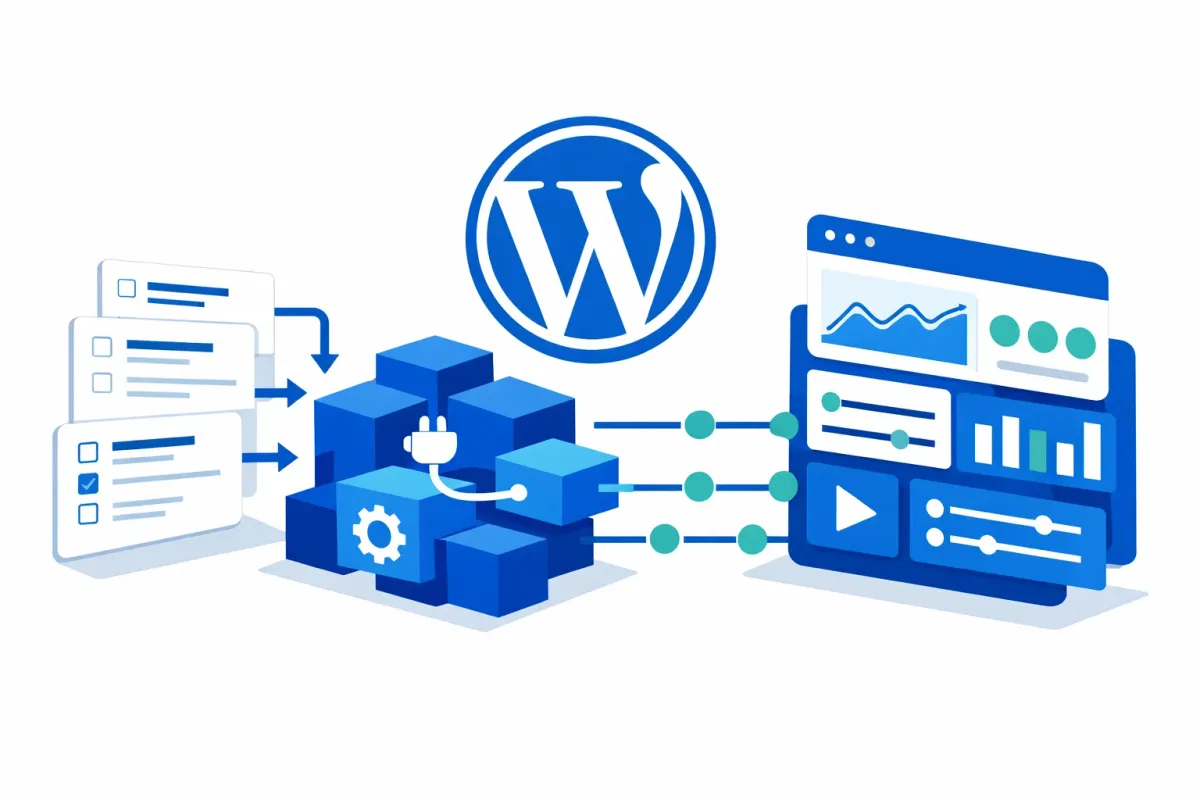
Most WordPress form tutorials stop at “save entries to the database.” That is where they should start. A WordPress form database workflow transforms passive data collection into active business processes: routing leads, triggering approvals, and surfacing information where users need it. This tutorial introduces three workflow patterns that move beyond storage to build data-driven applications using WordPress-native tools.
You will learn how to evaluate your storage needs, automate post-submission actions with hooks, and display form data on the front end for user self-service.
Understanding Form Database Storage
Major form plugins handle entry storage differently, and those differences affect what you can build.
Gravity Forms uses a normalized multi-table schema with dedicated tables for entries and entry meta. WPForms Pro stores entries in its own database tables (note: WPForms Lite sends email only and requires Pro for database storage). Formidable Forms uses a similar custom table approach. Ninja Forms stores submissions as a custom post type (nf_sub).
Why does this matter for workflows? Custom tables typically offer faster queries for large entry volumes. All of these plugins provide post-submission hooks for automation, but the specific hook names and parameters differ.
For most workflows, any of these plugins work well. Your choice should factor in ecosystem compatibility: if you need approval workflows, Gravity Forms pairs with Gravity Flow; if you want no-code front-end displays, Formidable Forms has built-in Views.
Pattern 1: Capture and Store
The Capture and Store pattern covers basic entry management within the WordPress admin. Every major form plugin provides this functionality out of the box.
What you get:
- Entry viewing and search in the admin dashboard
- Export to CSV or Excel for external analysis
- Entry notes and internal status tracking
- Basic filtering by date range or field values
When this is enough:
This pattern works well for contact forms, feedback collection, and any scenario where staff manually review entries. A small business receiving 50 inquiries per month can handle triage directly in the admin dashboard without additional automation.
The limitation appears when volume increases or when entries require action from multiple people. At that point, you need Pattern 2.
Pattern 2: Route and Notify
The Route and Notify pattern automates what happens after submission. Instead of manually checking entries, your WordPress site pushes information to the right people at the right time.
Using Post-Submission Hooks
All major form plugins expose hooks that fire after a successful submission. These hooks let you run custom PHP code to extend default behavior.
Here is a Gravity Forms example that routes submissions based on a department field:
add_action( 'gform_after_submission', 'custom_workflow', 10, 2 );
function custom_workflow( $entry, $form ) {
    $department = rgar( $entry, '5' ); // Department field ID

    if ( $department === 'Sales' ) {
        // Route to sales team
        wp_mail( '[email protected]', 'New Sales Inquiry', 'Check the dashboard.' );
    } elseif ( $department === 'Support' ) {
        // Route to support team
        wp_mail( '[email protected]', 'New Support Request', 'Check the dashboard.' );
    }
}
Other plugins use different hooks: WPForms uses wpforms_process_complete, Formidable uses frm_after_create_entry, and Ninja Forms uses ninja_forms_after_submission. The pattern remains the same: intercept the submission, evaluate field values, and trigger appropriate actions.
Visual Workflow Building with Gravity Flow
For teams that need multi-step workflows without custom code, Gravity Flow extends Gravity Forms with over 40+ step types. You can build approval chains, user input steps, and conditional branching through a visual interface.
A typical approval workflow might include: form submission, manager review, conditional approval or rejection, and notification to the submitter. Gravity Flow handles the routing logic, status tracking, and user permissions.
Pattern 3: Display and Act
The Display and Act pattern brings form data to the front end, enabling user self-service and data-driven interfaces without custom development.
Front-End Views Solutions
GravityView lets you display Gravity Forms entries on the front end using templates. Users can view their own submissions, search entries (if permitted), and interact with data outside the admin area.
Formidable Views provides similar functionality built into Formidable Forms. You can create tables, calendars, or custom layouts displaying entry data.
What you can build:
- Member directories where users manage their own profiles
- Job boards with submission and application tracking
- Event registration lists with attendee counts
- Support ticket portals where users check status
The key benefit is user self-service. Instead of fielding email requests for status updates, you give users direct access to their data. This reduces administrative overhead and improves user experience.
Consider data retention and privacy when displaying entries. Users should only see their own submissions unless you have a specific reason (and permission) to show shared data.
Practical Use Cases
These patterns combine in real workflows. Here are three examples:
Lead Capture Workflow
Form submission captures lead details (Pattern 1). A post-submission hook routes the notification to the appropriate sales rep based on territory or product interest (Pattern 2). The sales team views and updates leads through a front-end dashboard (Pattern 3).
Approval Request Workflow
An employee submits a vacation request via form (Pattern 1). Gravity Flow routes the request to the appropriate manager based on department (Pattern 2). The manager approves or rejects from a front-end inbox, and the employee sees their request status on a self-service portal (Pattern 3).
Event Registration Workflow
Attendees register through a form (Pattern 1). Confirmation emails route automatically, with different content for VIP and general attendees (Pattern 2). A front-end attendee list displays registrations, and organizers can export the list for badges or check-in (Patterns 1 and 3).
Choosing Your Pattern
Start with Pattern 1. Every form needs basic entry management, and you may not need more complexity.
Graduate to Pattern 2 when manual notification becomes burdensome, when entries require routing to different people, or when you need multi-step approvals. The code-based approach suits developers; Gravity Flow suits teams wanting visual workflow design.
Add Pattern 3 when users need access to their own data, when you want to reduce admin inquiries about submission status, or when you are building a data-driven application (directory, job board, portal).
The right pattern depends on your volume, your team’s technical comfort, and how much user self-service you want to provide. These WordPress-native tools handle most scenarios without external platforms.