
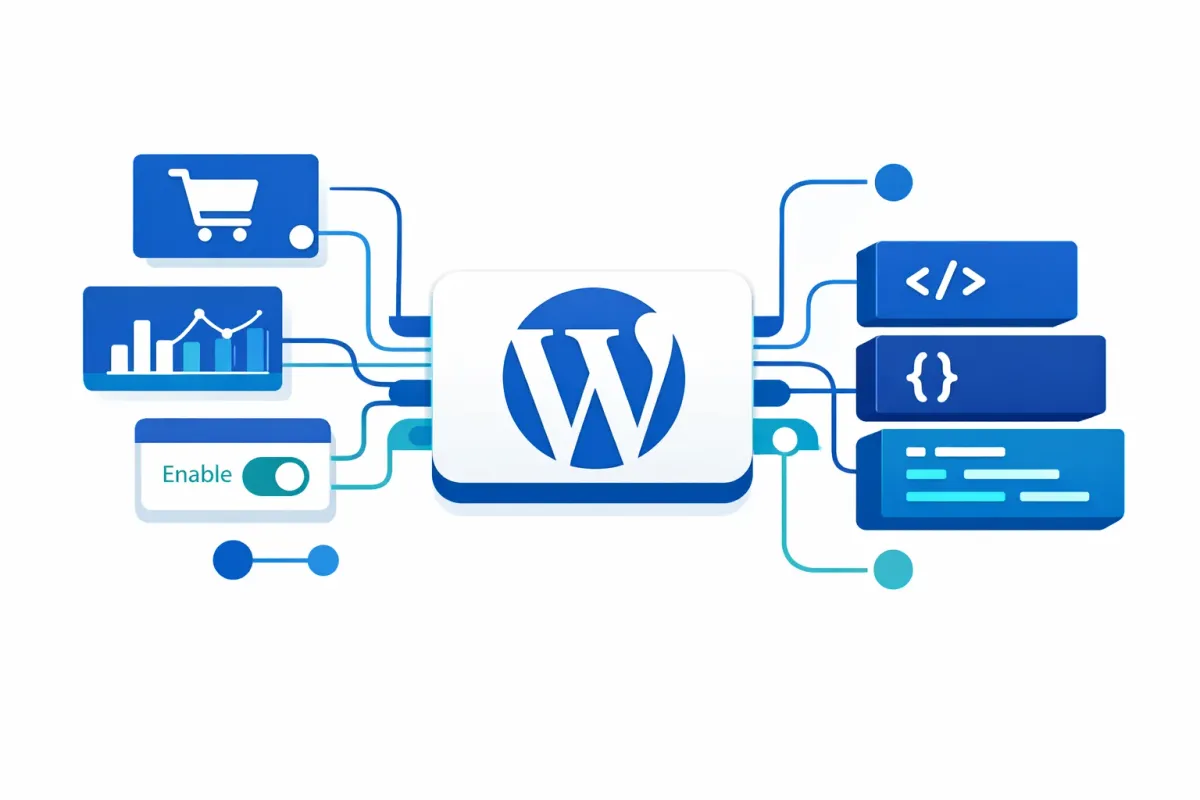
WooCommerce MCP Protocol: Connecting Your Store to AI Assistants
Learn how to enable MCP in WooCommerce 10.3 and configure Claude Desktop to interact with your store through natural language queries. Complete setup guide with code examples.
Model Context Protocol (MCP) is an open standard developed by Anthropic that enables AI assistants to interact with external data sources and tools through a unified interface. With WooCommerce 10.3, released October 21, 2025, store owners can now connect AI assistants like Claude Desktop directly to their WooCommerce stores through native MCP integration.
This capability opens new possibilities for AI-powered store management: querying product inventory, analyzing order patterns, and automating routine administrative tasks through natural language. This guide walks you through enabling MCP on your WooCommerce store and configuring Claude Desktop to communicate with it.
Note: MCP is currently in developer preview. APIs and features may change in future releases. Monitor the WooCommerce developer blog for updates.
Prerequisites
Before configuring MCP, verify your environment meets these requirements:
- WooCommerce 10.3+ (MCP beta introduced in this release)
- WordPress 6.9+ (required for the Abilities API that MCP depends on)
- HTTPS enabled on your site (required for production deployments)
- Node.js 22+ installed locally (the MCP proxy server requires this)
- REST API enabled in WooCommerce (enabled by default)
You will also need administrator access to your WordPress installation and permission to create REST API keys.
Enable MCP in WooCommerce
MCP integration is disabled by default in WooCommerce 10.3 because it remains a beta feature undergoing active development. You can enable it through three methods depending on your site management workflow.
Method 1: Admin Dashboard
Navigate to WooCommerce > Settings > Advanced > Features. Locate the “MCP Beta” option and check the box to enable it. Save your changes.
Method 2: WP-CLI
For sites managed via command line or automated deployments, run:
wp option update woocommerce_feature_mcp_integration_enabled yesThis method works well for staging environments where you want to enable MCP without accessing the admin dashboard.
Method 3: PHP Filter
Add this code to your theme’s functions.php or a custom plugin:
add_filter( 'woocommerce_features', function( $features ) {
    $features['mcp_integration'] = true;
    return $features;
});
The PHP filter approach provides version control benefits since you can track the change in your codebase rather than relying on database options.
Verify MCP is Enabled
After enabling MCP, visit your site’s MCP endpoint to confirm it responds:
https://yourstore.com/wp-json/woocommerce/mcpA successful response indicates MCP is active. If you receive a 404 error, flush your permalinks by visiting Settings > Permalinks and clicking “Save Changes.”
Generate REST API Credentials
MCP authentication requires WooCommerce REST API keys. These credentials authorize the AI assistant to access store data.
- Navigate to WooCommerce > Settings > Advanced > REST API
- Click Add Key
- Enter a description (e.g., “Claude Desktop MCP Access”)
- Select the user account for this key
- Set permissions:
- Read for query-only access (recommended for initial testing)
- Read/Write if you need the AI to modify data
- Click Generate API Key
WooCommerce displays your consumer key (ck_...) and consumer secret (cs_...). Copy these immediately. The secret is only shown once and cannot be retrieved later. Store both values in a password manager or secure location. If you lose the secret, you must generate a new key pair.
Configure Claude Desktop
Claude Desktop uses a JSON configuration file to connect to MCP servers. The @automattic/mcp-wordpress-remote package, maintained by Automattic, acts as a proxy between Claude and your WooCommerce store, handling authentication and request formatting.
Locate the Configuration File
The configuration file location depends on your operating system:
- macOS:
~/Library/Application Support/Claude/claude_desktop_config.json - Windows:
%APPDATA%\Claude\claude_desktop_config.json - Linux:
~/.config/Claude/claude_desktop_config.json
If the file does not exist, create it with an empty JSON object {} as the starting content.
Add the WooCommerce Server Configuration
Open the configuration file and add or merge the following configuration:
{
  "mcpServers": {
    "woocommerce": {
      "command": "npx",
      "args": ["-y", "@automattic/mcp-wordpress-remote@latest"],
      "env": {
        "WP_API_URL": "https://yourstore.com",
        "WOO_CUSTOMER_KEY": "ck_your_consumer_key",
        "WOO_CUSTOMER_SECRET": "cs_your_consumer_secret"
      }
    }
  }
}
Replace the placeholder values:
WP_API_URL: Your store’s base URL (includehttps://, no trailing slash)WOO_CUSTOMER_KEY: The consumer key generated earlierWOO_CUSTOMER_SECRET: The consumer secret generated earlier
Restart and Verify
After saving the configuration file:
- Quit Claude Desktop completely
- Reopen Claude Desktop
- Test the connection by asking Claude about your store
Try a simple query like “How many products do I have in my WooCommerce store?” or “Show me recent orders.” If Claude returns store data, your MCP connection is working.
If Claude cannot connect, verify:
- Node.js 22+ is installed and accessible in your system PATH
- Your API credentials are correct (no extra whitespace)
- Your store URL is accessible from your local machine
- HTTPS is properly configured on your server
- The WooCommerce REST API is enabled and accessible
You can test REST API access independently by visiting https://yourstore.com/wp-json/wc/v3/products in a browser. A JSON response confirms the API is working.
Security Best Practices
Connecting an AI assistant to your store exposes sensitive data. Implement these safeguards:
PII Exposure Awareness
Order and customer operations provide access to personally identifiable information: names, email addresses, shipping addresses, phone numbers, and purchase history. Consider whether AI access to this data aligns with your privacy obligations and any applicable regulations such as GDPR or CCPA.
Principle of Least Privilege
Use Read-only API keys unless your workflow specifically requires write operations. This prevents accidental data modifications from AI interactions. You can create multiple keys with different permission levels for different use cases.
Credential Rotation
Rotate your API keys every 90 days. To rotate:
- Generate a new key pair in WooCommerce
- Update your Claude Desktop configuration
- Revoke the old key
Environment Security
- Never commit API credentials to version control
- Do not share your
claude_desktop_config.jsonfile - Use HTTPS exclusively in production environments
- Enable WooCommerce audit logging to track API activity
Review the WooCommerce REST API authentication documentation for additional security guidance.
Conclusion
WooCommerce MCP integration provides a foundation for AI-assisted store management, enabling natural language queries against your product catalog, order history, and customer data. As the protocol matures beyond beta, expect expanded capabilities and improved tooling from both WooCommerce and AI assistant providers.
For now, treat this as a developer preview: useful for experimentation and internal workflows, but verify AI-generated insights before acting on them in production contexts.