
WooCommerce Blueprints: Exporting and Importing Store Configurations
Export and import WooCommerce store configurations with Blueprints. Step-by-step tutorial with CLI commands, multi-store workflows, and post-import checklist.
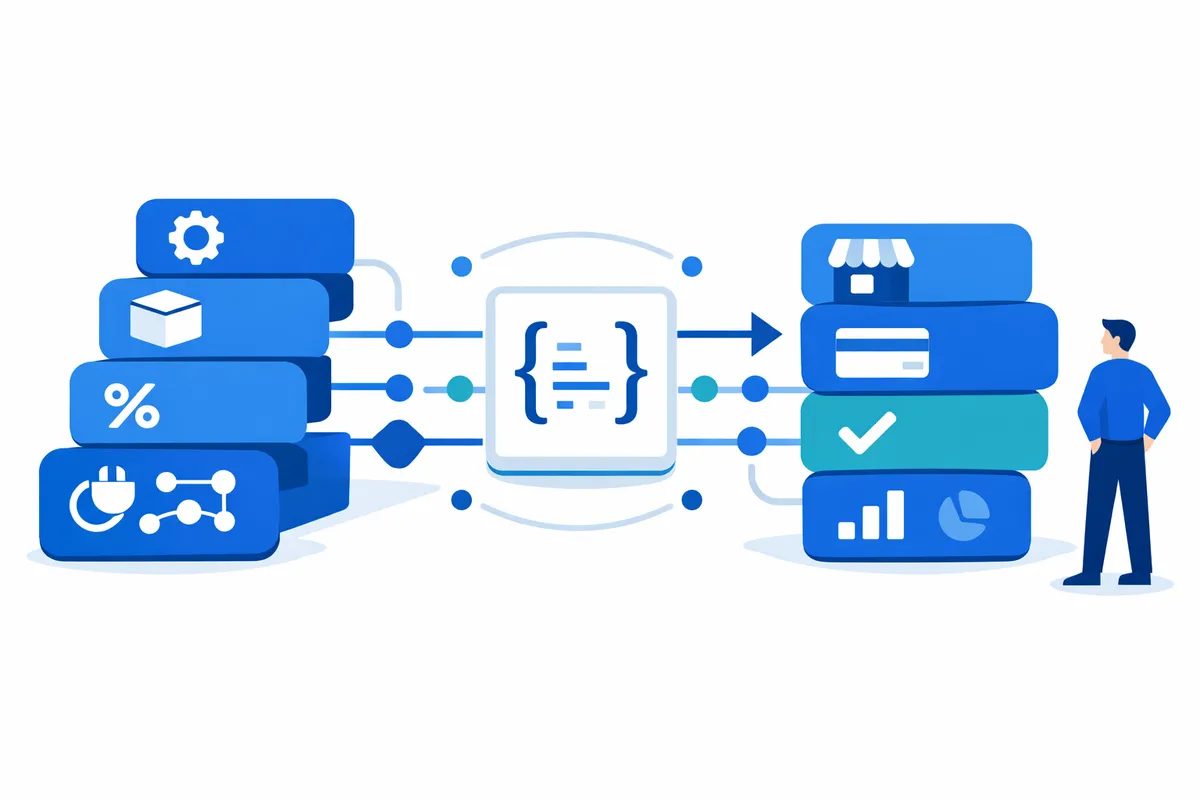
Setting up a new WooCommerce store typically means hours of configuring settings, shipping zones, tax rates, and payment gateways. WooCommerce Blueprints eliminates that repetitive work by letting you export your store’s configuration as a portable JSON file and import it into any other WooCommerce installation.
Introduced in WooCommerce 9.9 (June 2025) as a beta feature, Blueprints targets agencies managing multiple client stores, developers maintaining staging and production parity, and merchants launching new storefronts. This guide covers the complete workflow from export to import, including multi-store patterns and troubleshooting.
Enabling Blueprints
Blueprints is a beta feature that requires manual activation:
- Navigate to WooCommerce > Settings > Advanced > Features
- Check the Blueprint (beta) option
- Click Save changes
After enabling, you’ll find the Blueprints interface at WooCommerce > Settings > Advanced > Blueprints.
Note: As a beta feature, Blueprints may change in future WooCommerce releases. Test thoroughly before using in production workflows.
What Blueprints Export (and Don’t)
Understanding what transfers between stores prevents surprises during migration.
Exported configurations:
- General settings (store address, currency, country)
- Products settings (inventory, downloadable products)
- Tax settings and rates
- Shipping zones and methods
- Payment gateway settings (not account credentials)
- Accounts & Privacy settings
- Advanced settings (API, webhooks)
- Active plugins (WordPress.org only)
- Active theme (WordPress.org only)
NOT exported:
- Products, orders, and customers (transactional data)
- Payment account credentials (requires manual reconnection)
- Premium plugins not on WordPress.org
- Custom database tables
The separation makes sense: Blueprints handle configuration, not content. For product and order migration, use WooCommerce’s built-in import/export or dedicated migration plugins.
Exporting a Blueprint
Step 1: Navigate to WooCommerce > Settings > Advanced > Blueprints
Step 2: In the Export section, select what to include:
- WooCommerce Settings: Core configuration (recommended)
- Plugins: Active plugins from WordPress.org
- Theme: Active theme from WordPress.org
Step 3: Click Export
Step 4: Download the generated .json file
For most use cases, exporting all three categories creates a complete store configuration snapshot. If you’re only updating settings between stores that already have the same plugins, export settings alone.
Importing a Blueprint
WooCommerce requires Coming Soon mode before importing to prevent accidental configuration changes on live stores.
Step 1: Enable Coming Soon mode at WooCommerce > Settings > Site Visibility
Step 2: Navigate to WooCommerce > Settings > Advanced > Blueprints
Step 3: In the Import section, upload your .json blueprint file
Step 4: Review any warnings displayed before proceeding
Step 5: Click Import
The import process installs plugins and themes automatically if they’re available on WordPress.org. Settings apply immediately.
For staging environments, you can bypass Coming Soon mode by adding this constant to wp-config.php:
define( 'ALLOW_BLUEPRINT_IMPORT_IN_LIVE_MODE', true );Use this override only on non-production sites.
CLI Commands for Automation
WooCommerce provides CLI commands for scripted workflows:
Export a blueprint:
wp wc blueprint export /path/to/store-config.jsonImport a blueprint:
wp wc blueprint import /path/to/store-config.json --show-messages=allThe --show-messages flag outputs detailed progress, useful for debugging.
These commands integrate with deployment scripts, making Blueprints part of automated store provisioning.
Multi-Store Workflow Pattern
Here’s a practical workflow for agencies deploying configurations across client stores:
Setting up a master configuration:
-
Configure a “golden” reference store with your standard settings:
- Preferred shipping zones and rates
- Tax configuration templates
- Default payment gateway settings
- Standard plugin stack
-
Export the complete blueprint:
wp wc blueprint export golden-store-config.json -
Store the blueprint in version control alongside your deployment scripts
Deploying to client stores:
- Provision new WooCommerce installation
- Enable Blueprints feature
- Import the master configuration:
wp wc blueprint import golden-store-config.json - Install any premium plugins manually
- Connect payment gateway accounts
- Customize client-specific settings (store address, currency if different)
This pattern reduces new store setup from hours to minutes, with consistent baseline configurations.
Post-Import Checklist
After importing a blueprint, verify these items:
Immediate verification:
- Store address and contact information correct
- Currency and country settings appropriate
- Tax rates imported correctly
- Shipping zones and methods present
Manual configuration required:
- Payment gateway accounts connected (credentials don’t transfer)
- SMTP/email service configured
- Any premium plugins installed and licensed
- API keys regenerated if needed
Testing:
- Place a test order through checkout
- Verify shipping calculations
- Confirm tax calculations
- Test payment processing (use test mode)
Where to find logs:
Import operations log to WooCommerce > Status > Logs with source wc-blueprint. Check here if imports fail or behave unexpectedly.
Limitations and Workarounds
Premium plugins: Blueprints only bundle plugins available on WordPress.org. For premium extensions, install them separately before importing, and the blueprint will configure their settings.
Payment reconnection: This is by design—payment credentials shouldn’t transfer between environments for security reasons. Budget time for payment gateway setup on each new store.
Table prefix differences: Tax rates and shipping zones export as SQL statements. If importing between sites with different database table prefixes, test carefully or edit the JSON file manually if issues occur.
Moving Forward
WooCommerce Blueprints simplifies what was previously a tedious manual process: replicating store configurations. For agencies managing multiple client stores or developers maintaining staging environments, this native feature replaces custom scripts and third-party migration plugins.
The beta status means the feature is still evolving. Test in non-production environments before building Blueprints into critical workflows. But for store configuration portability, this is the direction WooCommerce is heading—and it’s worth incorporating into your workflows now.