
Gravity Forms Paths: Conditional Routing Without Code
Build conditional routing in Gravity Forms Paths using three native methods — no-code tutorial covers page routing, notification routing, and confirmations.
Gravity Forms Paths: Conditional Routing Without Code
You have a contact form that sends every submission to the same inbox, and your team wastes time forwarding messages to the right department. The fix is conditional routing — what many users search for as “Gravity Forms paths” — and it is already built into Gravity Forms core. No add-on required.
To be clear: “Paths” is not a specific Gravity Forms product or add-on. It describes the concept of routing submissions through different workflows based on user input. Gravity Forms includes three native methods for this, covering most routing scenarios without writing code. If you need post-submission multi-step workflows, Gravity Flow handles that separately. For background on form data capture before routing, see form-to-database workflows.
These steps apply to Gravity Forms 2.9.x and Gravity Flow 3.0.x. Below are all three routing methods, when to use each, and how they combine into a complete no-code automation workflow.
Three Gravity Forms Paths for Conditional Routing
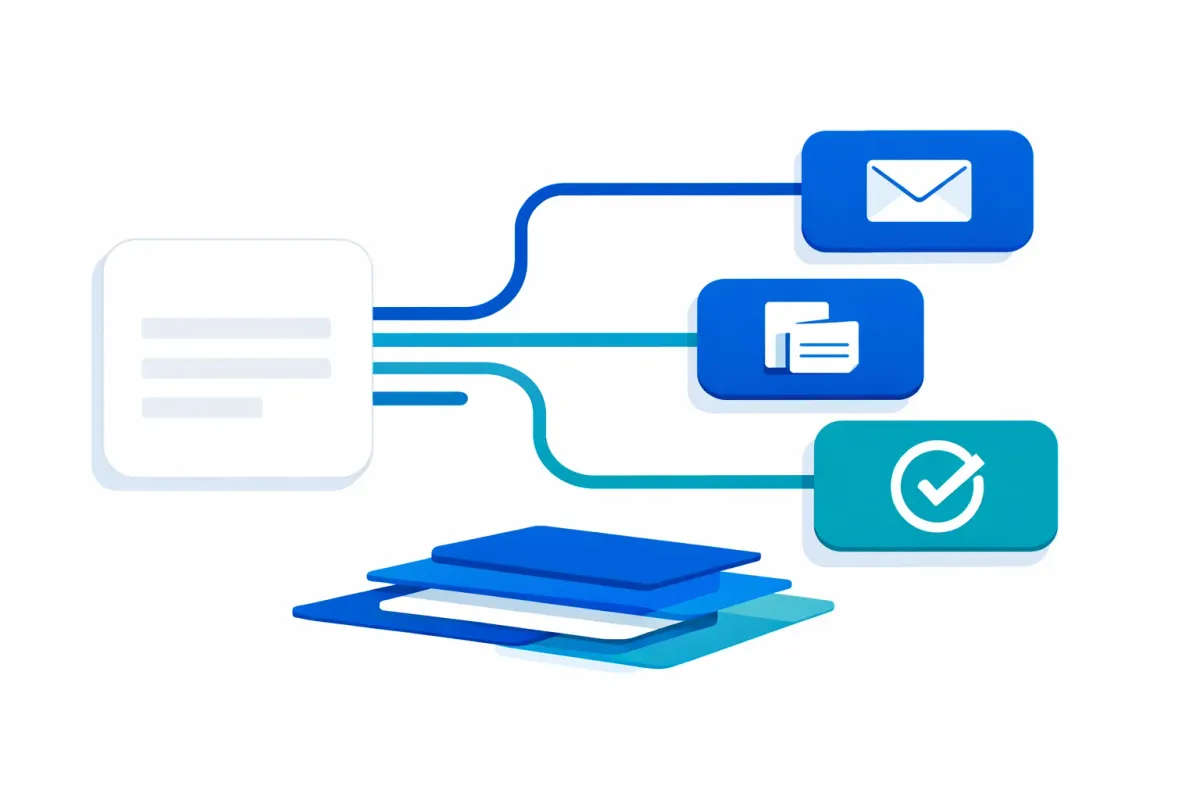
Each method handles a different stage of the form submission lifecycle:
| Method | What It Routes | When It Runs | Use Case |
|---|---|---|---|
| Page Break Conditional Logic | The form experience (which questions users see) | During form completion | Show department-specific fields based on a dropdown |
| Notification Routing | Who receives the submission email | Immediately after submission | Send leads to the right team inbox |
| Conditional Confirmations | What the user sees after submitting | Immediately after submission | Redirect to a booking page or show a custom thank-you |
Combined, they create a complete path: the right questions, the right team notified, and the right next step for the user.
Method 1: Route the Form Experience With Page Conditional Logic
Page Break conditional logic lets you build multi-page forms where users only see pages relevant to their selection. Hidden pages are skipped automatically.
Setting Up a Department Routing Form
Your contact form asks visitors to select a department (Sales, Support, or Partnerships). Each department needs different qualifying questions:
- Create a Dropdown field on Page 1 with your department options.
- Add Page Break fields to create Pages 2, 3, and 4 — one per department.
- On each Page Break, enable Conditional Logic: “Show this page if Department is [value].”
- Add a final page (Page 5) with shared fields like message and file upload.
When a visitor selects “Sales,” they see Sales-specific fields on Page 2 and skip directly to Page 5. The other pages never appear.
Key detail: Fields on hidden pages are not submitted with the entry. If you need to capture data across all paths, place those fields on a page that is always visible.
Method 2: Route Notifications to the Right Team
Notification routing sends submission emails to different recipients based on field values — routing rules instead of a static “Send To” address.
Configuring Notification Routing Rules
- Navigate to Forms > Settings > Notifications and edit your notification (or create a new one).
- Under Send To, select Configure Routing instead of entering a single email.
- Add routing rules: “If Department is Sales, send to [email protected].” Add a rule for each option.
Each rule maps a field value to an email address. When a submission matches, the notification goes to that address.
Best practice: Re-test notification routing after modifying dropdown or radio button options. If a routing rule references a value that no longer exists, the notification processes with an empty Send To value and the email is not delivered.
You can create multiple notifications with different routing configurations — one routes the full submission to the department lead, another sends a confirmation to the visitor.
Method 3: Route Users to the Right Next Step
Conditional confirmations control what happens after the user clicks Submit — different messages, pages, or redirect URLs based on form values. This completes the routing path: the right questions (Method 1), the right team notified (Method 2), and the right next step for the user (Method 3).
Setup:
- Navigate to Forms > Settings > Confirmations.
- The Default confirmation cannot have conditional logic — it serves as your fallback.
- Click Add New to create a conditional confirmation.
- Choose the type: Text (on-page message), Page (WordPress page), or Redirect (external URL).
- Under Conditional Logic, define when this confirmation appears (e.g., “If Department is Sales”).
Gravity Forms evaluates conditional confirmations in order. The first match wins; the Default catches everything else.
Example: Sales submissions redirect to a calendar booking page, Support displays ticket expectations, and Partnership inquiries redirect to a partner portal. You can pass field values to redirect URLs using merge tags — ?department={Department:3} lets the destination page personalize the experience.
When Gravity Forms Paths Aren’t Enough: Adding Gravity Flow
The three methods above handle routing during and immediately after submission. If your workflow requires steps after submission — review chains, time-delayed actions, or branching based on team decisions — you need Gravity Flow ($99-$447/year).
Gravity Flow adds workflow steps with conditional branching. Each step has conditions that determine whether it executes, plus a “Next Step” setting controlling where the entry goes afterward.
Key constraint: Entries follow one branch at a time — no parallel execution. Plan workflows as sequential decision trees.
For a walkthrough of post-submission workflows, see our Gravity Flow multi-step workflows guide. For managing routed entries over time, see entry automation and data lifecycle management. If you need to export routed data to spreadsheets, see our guide to automating Gravity Forms Excel exports.
Frequently Asked Questions
What is Gravity Forms Paths?
Not a specific add-on or product feature. The term describes conditional routing workflows built with three native Gravity Forms capabilities: page conditional logic (which questions users see), notification routing (which team gets the email), and conditional confirmations (where the user lands after submitting). These three methods create routing paths through your forms without code.
What is the difference between conditional logic and routing paths?
Conditional logic is the underlying feature — show/hide rules on fields, pages, notifications, and confirmations. “Routing paths” describes the strategy of combining conditional logic rules across these layers into end-to-end workflows. Conditional logic is the mechanism; routing paths are the outcome.
Do I need Gravity Flow to route form submissions?
No. Page conditional logic, notification routing, and conditional confirmations are built into Gravity Forms core ($59/year). You only need Gravity Flow for post-submission workflow steps like review chains or time-delayed actions.
Is Gravity Forms Paths the same as Gravity Flow?
No. Gravity Forms Paths refers to in-form and immediate post-submission routing using core features. Gravity Flow is a separate product ($99-$447/year) that adds multi-step post-submission workflows. Most routing scenarios work with Gravity Forms alone.
Can I route notifications to different departments based on a dropdown?
Yes. In your notification settings, select “Configure Routing” instead of a static Send To address. Add one rule per dropdown value, each pointing to the relevant department email.
Want more tutorials on building form-based workflows without code? Subscribe to the Summix newsletter for practical WordPress automation guides delivered to your inbox.